Best Drawing Tablets for 3D Modeling (2026)
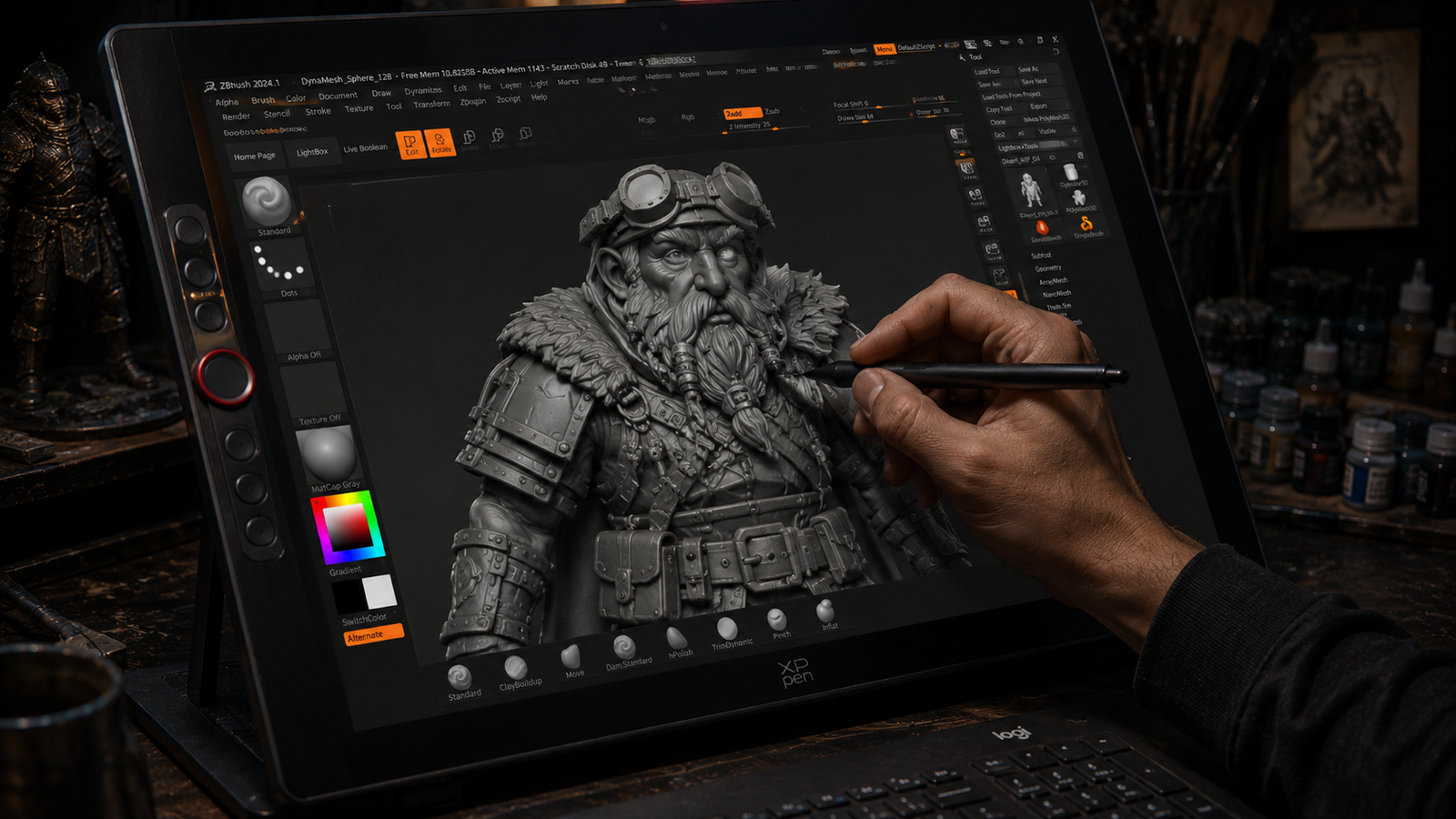
The mouse is the most limiting tool in 3D figure modeling. Not because you can't model with it (you can) but because the binary pressure of a click forces you to constantly interrupt your creative flow to adjust brush intensity, size and opacity. The best drawing tablet for 3D modeling solves that with a single gesture: more pressure on the pen, more deformation of the volume. Like modeling real clay, but digital.
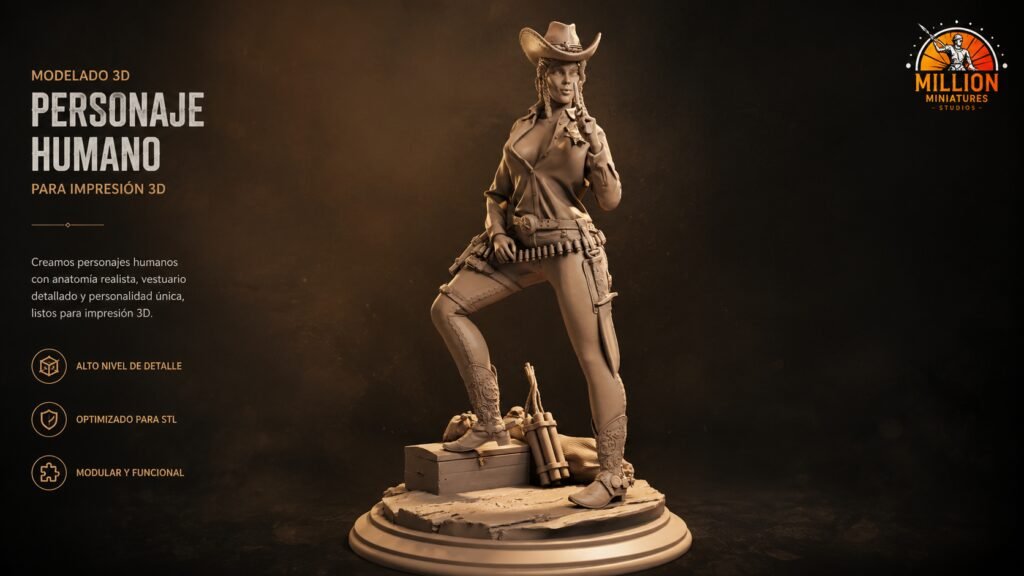
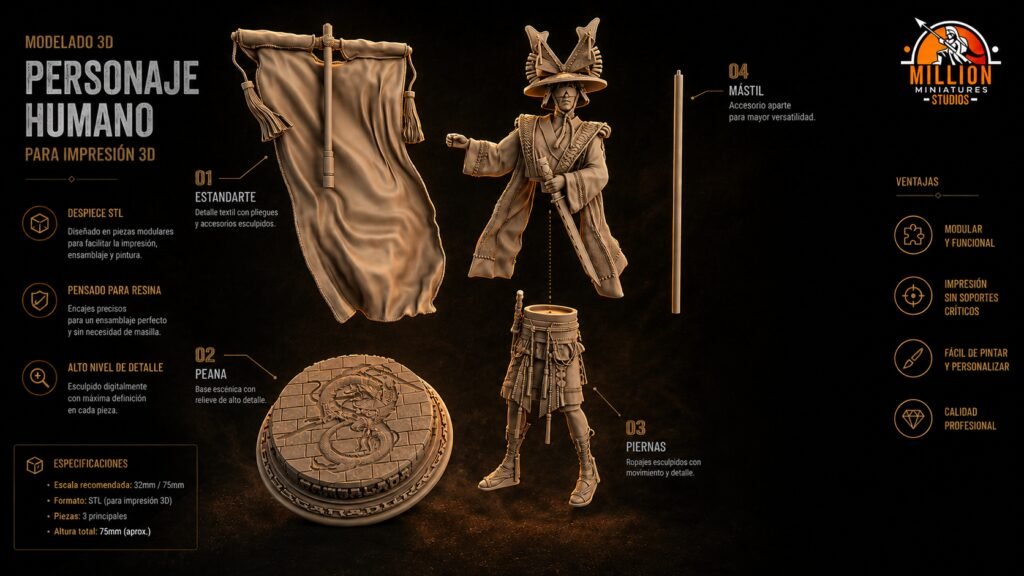
At MMS we have used tablets for years to model our Wild West Girls and Future War Girls collections, and for custom commissions. This guide gathers what we know about what works for 3D modeling of figures and miniatures specifically, not for 2D illustration or photography, which have different requirements.
Quick comparison: the best drawing tablets for 3D modeling miniatures (2026)
| Model | Type | Pressure levels | IAF | Approx. price | Profile |
|---|---|---|---|---|---|
| XP-Pen Artist Pro 16 Gen 2 Best value for money | With 2.5K screen | 16.384 | 3 g | ~510 € | Intermediate / Advanced |
| Wacom Intuos Pro Medium The screenless benchmark | No screen | 8.192 | <1 g | ~400 € | Professional / Studio |
| Wacom Movink 13 | With OLED screen | 8.192 | <1 g | ~553–660 € | Professional / Portability |
| Huion Kamvas Pro 19 | With 4K screen | 16.384 | 2 g | ~999–1.099 € | Professional / Large format |
| Xencelabs Pen Tablet Medium v2 | No screen | 8.192 | 3 g | ~250–330 € | Intermediate: a Wacom alternative |
| Huion Inspiroy Frego M Absolute starter | No screen | 8.192 | — | ~77 € | Beginner / Tight budget |
Screen vs no screen: which to choose for 3D modeling
The difference isn't quality; it's workflow and budget. Screenless tablets physically separate your hand from the cursor: you move the pen on the tablet but look at the monitor. Tablets with a built-in screen let you draw directly on what you see. Both work for ZBrush and Blender.
📟 No screen: when to choose it
- Tight budget: the same precision at half the price
- Long sessions: no eye strain from an extra screen
- Posture ergonomics: tablet flat, monitor at eye level
- Zero latency: the cursor responds with no screen lag
- You've been using a mouse for a while: the adaptation curve is the same
- Examples: Wacom Intuos Pro, Xencelabs Medium, Huion Frego M
🖥️ With a screen: when to choose it
- More natural flow: you draw where you look
- Micro-texture details: see and sculpt at the same point
- Illustration work alongside 3D modeling
- Portability with a quality screen (Movink 13)
- You've used a screenless tablet for months and want the next level
- Examples: XP-Pen Artist Pro 16, Wacom Movink 13, Huion Kamvas Pro 19
The MMS recommendation for beginners: screenless tablet + quality monitor. The Wacom Intuos Pro Medium with a good 27" 1440p monitor gives you better results in ZBrush than a mid-range tablet with a 13" screen, and for less total money.
Review and where to buy each tablet
XP-Pen Artist Pro 16 Gen 2: the best value for money with a screen
The second-generation X3 Pro chip solves XP-Pen's main historical problem: Initial Activation Force. At 3 g, the response on light strokes is sensitive enough for micro-textures in ZBrush. The laminated 2.5K screen reduces parallax to less than 0.4 mm at the center; the distance between the pen tip and the on-screen cursor is almost imperceptible.
For 3D modeling miniatures: the included ACK05 wireless Quick Keys remote is the big operational advantage. It lets you map ZBrush's most-used functions (rotate, scale, switch tools, undo) without taking your hand off the pen. In long sessions of pore and seam detailing, that translates into double the working speed.
Honest weak point: the screen produces noticeable heat in the upper right corner after three hours of continuous use, and there is slight jitter on very slow diagonal strokes that ZBrush's smoothing software corrects automatically.
XP-Pen Artist Pro 16 Gen 2
Laminated 2.5K screen · X3 Pro chip 16,384 levels · Quick Keys included
~510 €
- Active area 344×215 mm, equivalent to A4
- Laminated 2.5K screen: parallax <0.4 mm
- 16,384 pressure levels: X3 Pro chip
- IAF 3 g: high sensitivity for fine details
- 20 ms latency: smooth in ZBrush and Blender
- ACK05 wireless Quick Keys included
- Works with Windows and Mac
✅ The best option if you want a built-in screen without paying Wacom prices. The included Quick Keys is a real advantage in ZBrush; not having to take your hand away to switch tools multiplies your modeling speed.
⚠️ Noticeable heat in the upper area after long sessions. Jitter on gentle diagonals can be corrected with ZBrush smoothing. The drivers may need initial setup on Windows to disable Windows Ink and enable WinTab32.
Affiliate link — no extra cost to you
Wacom Intuos Pro Medium: the absolute screenless benchmark
Thirty years of tablet engineering concentrated in the latest model. The Pro Pen 3 has an Initial Activation Force below 1 g, the industry standard no competitor has matched yet. In practical terms in ZBrush: you can brush the surface with almost no pressure and the software registers the stroke. For micro-textures of skin, fabric and organic surfaces, that makes a real technical difference.
For 3D modeling miniatures: the screenless tablet has an important posture advantage. The pen is held at the same height as on paper, the wrist rests naturally, and the eyes look at the monitor at the right height. For 4-6 hour sessions of detailed modeling, ergonomics matter more than they seem to.
Honest weak point: the new Wacom Center 2025/2026 software has reports of coordinate-mapping instability in multi-monitor setups. If you use two monitors, it's worth applying the Windows Ink disabling procedure documented in the ZBrush community.
Wacom Intuos Pro Medium (2025)
Modular Pro Pen 3 · IAF <1 g · Bluetooth 5.3 · 4 mm magnesium
~400 €
- IAF <1 g: the highest sensitivity on the market
- Modular Pro Pen 3: configurable weight, grip and buttons
- Magnesium construction: 4 mm thick
- Bluetooth 5.3: cable-free if you prefer
- Practically zero latency: no image processing
- 10+ years of driver support: a long-term investment
✅ An IAF below 1 g is the real difference for modeling fine details. With no screen to process, the pen's response is immediate. The modular Pro Pen 3 adapts to each artist's hand; no competitor offers that level of customization.
⚠️ No built-in screen: it takes some adjustment if you're coming from a tablet with a screen. The new Wacom Center may require additional setup in multi-monitor setups.
Wacom Movink 13: professional OLED for modeling on the move
The Samsung OLED panel with 100,000:1 contrast and 0.2 ms pixel response is technically the best tablet panel on the market in 2026. Pure blacks let you judge the model's lights and shadows with a fidelity no LCD can match. At 420 g and 4-6.6 mm thick, it's the only professional tablet with a screen that can be used comfortably while traveling.
Honest weak point: the Full HD resolution on a 13.3" screen makes ZBrush's menus excessively small. For main studio use with ZBrush, the small screen can be frustrating. It's the ideal device as a complement to a fixed workstation, not as a replacement.
Wacom Movink 13
Samsung OLED panel · 420 g · Pro Pen 3 · IAF <1 g
~553–660 €
- Samsung OLED panel: 100,000:1 contrast
- 0.2 ms pixel response: the lowest on the market
- 420 g: the lightest tablet with a screen available
- Compatible with third-party EMR pens
- No residual heat: OLED doesn't generate heat like LCD
- Pro Pen 3 included: IAF <1 g
✅ The best panel of any tablet on the market for judging the model's lights and shadows. If display work and color fidelity are priorities, nothing beats OLED.
⚠️ Full HD resolution on 13.3": ZBrush menus end up small for intensive use. Designed as a portable complement, not as a main modeling station.
No stable listing on Amazon.es; available from the official Wacom site and PcComponentes
Huion Inspiroy Frego M: the cheapest way in
No screen, Bluetooth 5.0 and 24 hours of battery. If you want to test whether a tablet improves your workflow in Blender before investing in a mid-range model, the Frego M is the lowest-risk option. The pressure response is surprisingly linear for its price; there's none of the abrupt jump in the first 15% of pressure that cheap tablets from unknown brands have.
Huion Inspiroy Frego M
No screen · Bluetooth 5.0 · 8,192 levels · 24 h battery
~77 €
- Active area 250×160 mm: a comfortable size
- 8,192 pressure levels: enough for modeling
- Bluetooth 5.0: no cables
- 24 hours of battery: a full workday without charging
- Linear pressure response: no initial jump
✅ The best way to check whether a tablet improves your workflow in ZBrush or Blender without committing €400. If you're still using it in three months, stepping up to the Wacom Intuos Pro makes total sense.
⚠️ The pen lacks the weight and balance of the Pro Pen 3. The plastic surface wears with intensive daily use. For long-term professional modeling it isn't the final tool; it's the entry point.
Affiliate link — no extra cost to you
Essential accessories for your tablet
Artist glove: the most overlooked accessory
The palm of your hand brushing the surface of a tablet with a screen creates unintended strokes and constantly smudges the glass. The two-finger glove (covering the pinky and ring finger) eliminates that problem completely: the palm glides without dragging, the pen keeps clean contact and precision improves immediately. An accessory under €10 that should come included with every tablet with a screen.
Wacom Drawing Glove (Eco)
Two-finger artist glove · Works with all tablets
~8–10 €
- Covers pinky and ring finger: glides without dragging on the screen
- Breathable material: comfortable in long sessions
- Works with any tablet with a screen
- Available in S/M and M/L sizes
✅ Eliminates unintended palm strokes and keeps the glass clean. Improves precision on fine details with no extra effort.
⚠️ In summer it can be uncomfortable in very long sessions. Not needed for screenless tablets.
Affiliate link — no extra cost to you
XP-Pen ACK05 Quick Keys Remote
8 keys + dial · Wireless · Works with ZBrush / Blender
~50–70 €
- 8 programmable keys + central dial
- Wireless: no cables in the way
- Works with ZBrush, Blender and any software
- Compact size: takes up minimal desk space
✅ Switch tools, undo, rotate and scale without lifting the pen from the tablet. In detail modeling, not interrupting your flow has a real impact on the final result.
⚠️ Requires initial setup to map the keys to ZBrush. The investment pays off quickly if you model more than 5 hours a week.
Affiliate link — no extra cost to you
How to set up your tablet for ZBrush and Blender
Buying the tablet is only half of it. Driver setup makes the difference between a frustrating experience and a smooth one. The most common problem the ZBrush community reports with non-Wacom tablets: intermittent pressure loss caused by conflicts between the WinTab32 protocol ZBrush uses and the Windows Ink protocol that Windows enables by default.
| Step | Action | Why |
|---|---|---|
| 1. Disable Windows Ink | Control Panel → Pen and Touch → Press and Hold → Uncheck the activation option | Removes the latency Windows introduces when telling a quick click from a held one |
| 2. Run the driver as administrator | Driver executable Properties → Compatibility → Run as administrator | Avoids permission conflicts with ZBrush on Windows 11 |
| 3. Enable WinTab32 in ZBrush | ZBrush → Preferences → Tablet → WinTab mode | ZBrush reads pressure through WinTab32, not Windows Ink; without this there is no sensitivity |
| 4. Adjust the screen refresh rate | Windows Settings → Display → Advanced display → exactly 60 Hz or 120 Hz | Intermediate rates cause flickering and latency mismatches on tablets with a screen |
| 5. Calibrate the pressure curve | Tablet software → Pressure curve → Adjust to your usage profile | The default curve is optimized for 2D illustration; for 3D sculpting you want more sensitivity at low pressures |
Technical specs that matter for modeling miniatures
Not all the numbers on a spec sheet are equally relevant. For 3D modeling of figures and miniatures in particular, these are the parameters that really affect the result:
| Parameter | What it means | Recommended minimum | Why it matters for miniatures |
|---|---|---|---|
| IAF (Initial Activation Force) | Minimum pressure to register a stroke | <3 g | Skin pores and micro-textures need strokes with almost no pressure |
| Pressure levels | Gradations between minimum and maximum pressure | 8.192 | Above 8,192 the difference is imperceptible in practice |
| Tilt detection | Detected pen angle | ±60° | ZBrush's Trim, Polish and Crease brushes respond to tilt |
| Active area | Usable surface of the tablet | 250×160 mm | Small area = abrupt wrist movements. A4 (297×210) is the ideal size |
| Latency | Delay between stroke and response | <20 ms | High latency breaks the feeling of sculpting with real material |
What matters less: 16,384 pressure levels versus 8,192 are indistinguishable in real use. Screen resolution matters more for illustration than for 3D modeling, where the software constantly rotates the model. The number of ExpressKeys only matters if you map lots of shortcuts; to start, 6-8 keys are more than enough.
If you want to learn to get the most out of the tablet from scratch in ZBrush and Blender, our ZBrush vs Blender guide for modeling miniatures explains the complete workflow. And if you want to understand the whole process from concept to print-ready STL, the 3D modeling process of a character from scratch gives you the full map.
Modelado en ZBrush: del concept art a la criatura final (Modeling in ZBrush: from concept art to final creature) — Domestika
Manu Herrador · 3D artist specialized in character and creature modeling for video games (credits on Metroid: Samus Returns and Evil Dead: The Game) · Explicitly mentions miniature modeling
If you've just bought the tablet and want to learn to use it in ZBrush with a real project from start to finish, this is the reference course. Manu Herrador, a 3D artist with credits on video games such as Metroid: Samus Returns, teaches his complete workflow: from concept art to a creature ready for 3D printing or a video game. More than 6,700 students and 96% positive ratings (November 2026).
View course on Domestika →Frequently asked questions about drawing tablets for 3D modeling
Can you model in ZBrush or Blender without a drawing tablet?
Yes, you can. The mouse works in ZBrush and Blender, and many artists start that way. The difference is that the mouse only offers binary pressure: the ZBrush brush always applies the same intensity no matter how you move the mouse. To change the depth of a stroke you have to manually adjust the intensity slider every time.
The tablet solves that: more pressure on the pen, more deformation of the volume. For modeling micro-textures (pores, wrinkles, clothing seams at miniature scale) the difference is significant. For blocking out large shapes, the mouse works acceptably.
How long does it take to get used to a screenless tablet?
Between one and three weeks of daily use for your hand to start moving naturally. The brain has to learn to coordinate the hand's movement on the tablet with the cursor on the monitor, a disconnect that feels clumsy at first but becomes automatic quickly.
The trick that speeds up adaptation: set the tablet's active area to match the monitor proportionally. If your monitor is 16:9, set the tablet's active area to the same ratio. That way the hand's movement corresponds exactly to the cursor's movement.
Is Wacom still worth the price compared to XP-Pen or Huion in 2026?
For IAF and long-term driver stability, yes. Wacom's Pro Pen 3 with an IAF below 1 g is still the standard nobody has matched: XP-Pen is at 3 g and Huion at 2 g. For modeling very fine micro-textures, that difference shows on light strokes.
For the 80% of users who model figures without reaching competition level, the XP-Pen Artist Pro 16 Gen 2 gives 90% of Wacom's performance at half the price. The gap between brands has closed a lot in 2025-2026.
Where Wacom is still unbeatable: driver support for more than a decade, stability in complex setups and the Pro Pen 3 accessory ecosystem.
What's the difference between a drawing tablet and a 3D modeling tablet?
In hardware, none: it's the same tablet. The difference is in the software and how it's used. For 2D illustration you work with the tablet flat and bring the hand gesture straight onto the canvas. For 3D modeling in ZBrush or Blender, the tablet controls the sculpting brush that deforms a 3D mesh that is constantly being rotated.
The parameters that matter differ: for illustration, screen resolution and color coverage come first. For 3D modeling, IAF, latency and active area come first. A tablet that's good for 3D modeling also works for illustration, but not always the other way around.
Can you use an iPad with Apple Pencil to model miniatures in 3D?
For Nomad Sculpt on iPad, yes, and the result is very good for sketches and basic organic modeling. The Apple Pencil with the iPad Pro has a latency under 9 ms and excellent pressure response. For quick sketching and modeling on the go, iPad + Nomad Sculpt is a very capable combination.
The limitations appear when the model exceeds a certain polygon complexity: the iPad's processor (even the M4) handles the high-density meshes that detailed miniature collections require worse than a PC workstation does. For professional work in ZBrush with meshes of 5-10 million polygons, the iPad is not the right tool, though it is a good portable complement.
What computer do I need to use the tablet with ZBrush or Blender?
The tablet has no significant hardware requirements of its own; the bottleneck is the sculpting software. ZBrush and Blender mainly demand RAM (minimum 32 GB for complex meshes) and a GPU with at least 8 GB of VRAM for real-time lit preview.
In our computer guide for ZBrush and Blender we detail the recommended setups by level and budget.
Is the tablet also good for painting textures in Substance Painter or similar?
Yes, and with a real advantage over the mouse. Substance Painter and Mari respond to pen pressure to control the opacity and size of the texture brush, just like ZBrush. For painting textures on UVs directly on the 3D mesh, the tablet gives far better control than the mouse at edges, gradients and detail areas.
The same tablet works for the entire production pipeline of a miniature: modeling in ZBrush → retopology in Blender → normal baking → texture painting in Substance Painter.
Would you rather commission the modeling directly?
At MMS we model custom figurines from scratch, from a sketch or photograph to a print-ready STL file. If you have a character, pet or figure in mind and want the result without learning the software, get in touch with no obligation. We ship worldwide; shipping costs and any customs duties or import taxes are paid by the customer.
See our 3D modeling service →Club MMS — First to hear the news, 10% off
Early access to new Wild West Girls and Future War Girls collections, and 10% off your first order.